
Andrew
Syncdocs supports new Office file formats and OAuth
We’re happy to announce a new version of Syncdocs, version 4.1.
What’s new?
Google recently announced that they will be dropping support for exporting older Microsoft Office formats. Syncdocs has been updated to reflect this Google change.
Syncdocs also now supports the Google OAuth 2 protocol. This means that you can authenticate/de-authenticate Syncdocs using the standard Google permissions console.
Syncdocs will also now support single-sign-on (SSO) solutions like OneLogin and SSOEasy.
How to upgrade
As usual your old version should ask if you want to update automatically in the next few days, if you want the fixes now, right click on the Syncdocs taskbar icon, go to Preferences -> Advanced -> “Check for Updates”
You can also download the new version and install it over the old one.
http://www.syncdocs.com/download-syncdocs
USB Portable versions
This have also been updated. Grab the version that runs from a USB stick here.
The new 64 bit portable version is still undergoing testing with Office 64 bit.
How to set up OAuth
During installation, simply click on the link shown below, rather than entering your credentials into Syncdocs:

How to switch to OAuth
In the Syncdocs Preferences, Account tab, click on the checkbox shown below:

New Syncdocs Release has Notifications, Hybrid search
We’re happy to announce a new version of Syncdocs.
What’s new:
– Hybrid search combines local PC and Google Drive search results. You can open local files or Google Docs directly from the search results.
– Pop-up notifications. See taskbar notifications for new shared files, or for changes by others to files you have shared.
– Your Google Contact list is backed up once a day.
– The low bandwidth mode uses less bandwidth and now only syncs every 30 minutes despite local changes.
– Syncdocs can execute an external program at the end of the sync.
– some small user interface changes and bugfixes
How to upgrade
As usual your old version should ask if you want to update automatically in the next few days, if you want the fixes now, right click on the Syncdocs taskbar icon, go to Preferences -> Advanced -> “Check for Updates”
You can also download the new version and install it over the old one.
http://www.syncdocs.com/download-syncdocs
USB Portable versions
These have also been updated. Grab the version that runs from a USB stick here. There is also a 64 bit portable version.
Improve Security with Two-factor Authentication for Syncdocs
As Google expands into more and more of our lives it is worth thinking about what would happen if you lost access to your Google account.
Syncdocs provides extra security: in case your Google account is hacked, your files will not be accessible and can be protected by “military strength” AES encryption. However, it is better if you don’t lose you account to hackers in the first place.
A good way to add extra security is to enable Google two-factor authentication. This lets you use your cellphone or landline as a way of recovering your password. Your account is much safer and less likely to get hacked.
Matt Cutts provides more reasons to turn it on in his blog.
Syncdocs supports accounts with two-factor. Just click on “generate password” in the “application specific” password section. You can revoke access at any time without changing your password, too.
See this how to guide for a detailed walk-through on setting things up, or look at the screen-shot below for a brief explanation: 
Google Two Factor setup
Collaborate between Office 2013 and Google Apps
Using the new Microsoft Office 2013 (Office version 15) you can easily save documents to your web SkyDrive account. You can share this online document with other Office 2013 users. However, to share to the widest number of friends possible, it’s best not to force them to use a specific product.
If you have Syncdocs installed, you can easily collaborate between Office 2013 and Google Docs, in real-time. You can also collaborate between the older Office 2003, 2007 and 2010 versions using Google Docs. This is useful if your collaborators don’t all use the same product.
Here’s how to setup online collaboration using Word 2013 and Google Docs:
First install the latest free version of Syncdocs.
Then create a document in Word 2013, here we’ve just used the welcome document. Then simply save it to your Syncdocs synced folder on your desktop.

In Google Docs you can edit or share the file.

Any changes you make online are automatically synced back into your MS Word in real-time.

And Word 2013 changes are synced up to Google Docs.
This way you can easily share and collaborate on the web using any version of Office from the last 10 years and Google Docs.
One way “syncing” to Google Drive
Sometimes you only want to upload or download your files to or from Google and not do a full sync. The main reason for doing this is backups.
Syncdocs can easily do this. In the ‘Preferences’ menu look at the options in “Customized Sync Control”.
For example, if you only want to upload files to Google, then un-check “Download Google files to this PC”.

For more info on these options, see the Google Drive Backup guide
How to sync Google Drive to SkyDrive
Syncdocs works fine in along with with SkyDrive. You can sync to both Google Docs/Drive and SkyDrive simultaneously. You can also select a subset of folders in either to sync.
Why Multiple Syncing?
There are a few reasons one might want to sync to Google Drive and SkyDrive at the simultaneously. The main reason is to get your SkyDrive files synced with Google Drive and back. This means you can easily edit SkyDrive files online, share them to anyone and access them on any device.
SkyDrive has better support to remotely access your PC than Google Drive, and it also has a more familiar Microsoft Office viewer with Office 365. Google Drive has better Google Docs integration, however.
Google Docs also provides great online collaboration and and online office suite and is accessible from more devices than SkyDrive.
You might also want to sync to multiple cloud servers for redundancy. Syncdocs uses Google Storage to store your data and SkyDrive uses Microsoft’s services.
How to Sync Google Docs to SkyDrive
You can simply select your SkyDrive folder and have it synchronize to Google Docs with Syncdocs. Here’s how:
To access the selective sync menu.
1. Right click on the Syncdocs taskbar icon, and select Preferences. Then in the folder tab, click the Select button

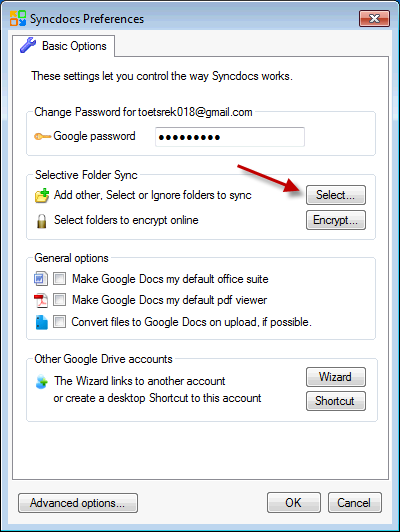
2. Click on “Add folder” and select My SkyDrive.
Note that you don’t have to Sync your entire SkyDrive folder, you can select a sub-folder inside it, too.

That’s it! Changes you make to stuff in SkyDrive will be synced to Google Docs and changes in Google Docs will be mirrored back to SkyDrive.
Advanced Options
You don’t have to sync the entire SkyDrive folder. You can select any sub folder or folders and only sync that to Google Drive.
This can be useful because Google gives 5GB free storage while SkyDrive gives you 7 to 25GB free.
Syncdocs version 3 – Even better Google drive syncing and backup
We’re happy to announce a major new version of Syncdocs, Syncdocs version 3
Improvements and New features:
– Strong encryption of files to Google Drive for enhanced privacy and security. Easily encrypt folders in Google Drive just by right clicking on the folder in Windows.
– Clearer menu options. User interface improvements bring commonly used features to main basic preferences menu, no longer confusingly hidden away.
– Very robust handling of all sorts of errors ensures your files are synced.
Minor improvements and fixes:
– mp3 playlist format compatible with more smartphone audio players.
– One click sharing of files works with Google Drive for goo.gl\xxyxx type URLs
– Better handling of files that are locked or that user is not authorized to read. These files are now just skipped with a warning and will be retried later.
– Better handling of file names with unprintable characters in them
– SSL errors from Google Drive are not interpreted as critical, and Syncdocs tries to work around them more smoothly.
– Editable sizes of files converted to Google Docs format increased to 50MB for presentations and 20MB for docs and sheets.
– New wyBuild automatic updater component, fixes update loops.
How to Update
The upgrade is free and will happen automatically. The old Syncdocs version should ask if you want to update automatically in the next few days. To update now, right click on the Syncdocs taskbar icon, go to Preferences -> Advanced -> “Check for Updates”
You can also download the new version and install it over the old one.
Enchanced Google Drive Privacy and Security
Since the announcement of Google Drive there has been some concern over the privacy of online file storage.
We’re happy to announce that Syncdocs now supports full cloud encryption of any file or folder using strong encryption.
- It’s pretty easy to use. Files are encrypted transparently. Here’s a quick start guide
- there’s more detailed information on the encryption settings
- and information on secure Sharing and syncing many PC’s
- we’ve also started an Google Drive Encryption FAQ for common questions.
Syncdocs Google Drive encryption is still in beta phase, so we’d love to hear from you, either as comments on this page, or on the forum.
Extra sync
We’ve just doubled the amount of free quota to 500 files
When we started Syncdocs 2 years ago, 1G online storage and 250 files seemed a reasonable amount. Not anymore, so we’ve doubled the amount of free starting quota to 500 files.
If you have already invited friends your quota will also be increased by at least 250. You can still get more by inviting friends to Syncdocs.
And get more file sync quota

Invite your friends to use Syncdocs and both of you get a free bonus. You get a +250 bonus per friend.
The person you invited also gets an extra 250 file bonus, so starts with 750 files. They can also invite others, while staying in sync with Google Docs on all their PCs.
Invite as many people as you wish, up to a max of 10,000 files.
Go here to invite by email, or to get a link to share on your blog, webpage, Facebook, Twitter or LinkedIn.
Enjoy!
-The Syncdocs team
How to sync multiple Google Drive accounts at startup
Why multiple Google Drive accounts?
Sometimes you want to sync different Google Drive accounts simultaneously. For example, you might have a work Google Apps account and a personal Google Docs or Drive account. You might also have different accounts to keep different data sets separate, or you may be running Syncdocs on a server and want it to back-up many accounts automatically. Syncdocs can easily do this, as described in this post.
Getting multiple accounts to automatically start
However, if you set Syncdocs to automatically start when your computer starts up, only your main account is started. If you want more than one account to automatically, here’s how.
1. Setup the accounts, and create desktop shortcuts for each account. Here’s how to setup multiple Syncdocs accounts.
2. Once you have setup the accounts, you should have a shortcut on your desktop for each account:

3. Click on the Start Menu and select “All Programs”

4. Find the “Startup” folder and right click on it and then select “Open”

5. Drag and drop, or copy the Syncdocs shortcuts to the start menu.

Next time you login, these Google Drive accounts will startup and sync automatically.
More Advanced Startup Options
Run as a service
Syncdocs is a desktop app, not a Windows service, to run it as a service use SrvAny or ServiceEx
Performing a single sync at Startup
If you want to perform a single sync at startup, you can modify the shortcut with the “–OnlyRunSyncOnce” parameter. So the shortcut command line is like:
syncdocs –OnlyRunSyncOnce -u user2@gmail.com
There is more information on Syncdocs command line paramenters. You can open, edit, upload or view files or folders at startup.
Scheduled backups
The normal Syncdocs backup schedule works exactly the same if started at Startup.
Syncing accounts sequentially
If you want to run a backup of many Google Drive accounts sequentially, you can create a batch file with the following type of content:
syncdocs –OnlyRunSyncOnce -u user01@gmail.com
syncdocs –OnlyRunSyncOnce -u user02@gmail.com
syncdocs –OnlyRunSyncOnce -u user03@gmail.com
…